[RTL8722CSM] [RTL8722DM] Use MQTT over TLS
Preparation
Ameba x 1
Example
In this example, we connect Ameba to a MQTT broker using TLS
authentication. Then send messages as a publisher and receive messages
from as a subscriber. Open the MQTT example “File” -> “Examples” ->
“AmebaMQTTClient” -> “MQTT_TLS”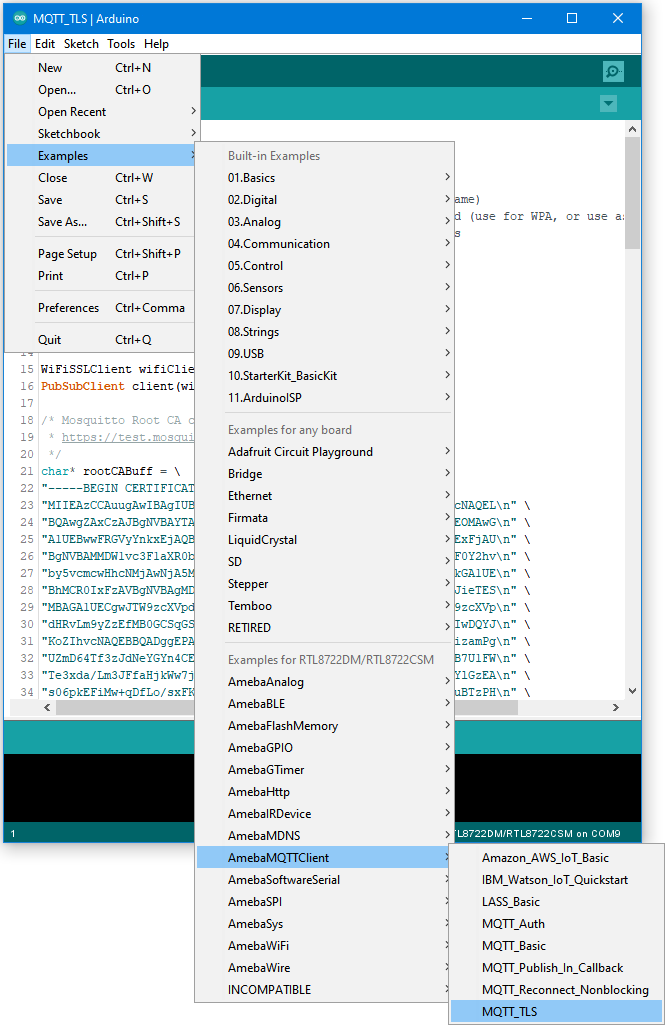 Please modify the WiFi-related
parameters to connect to your WiFi network. Modify the MQTT parameters
to fit your application:
Please modify the WiFi-related
parameters to connect to your WiFi network. Modify the MQTT parameters
to fit your application: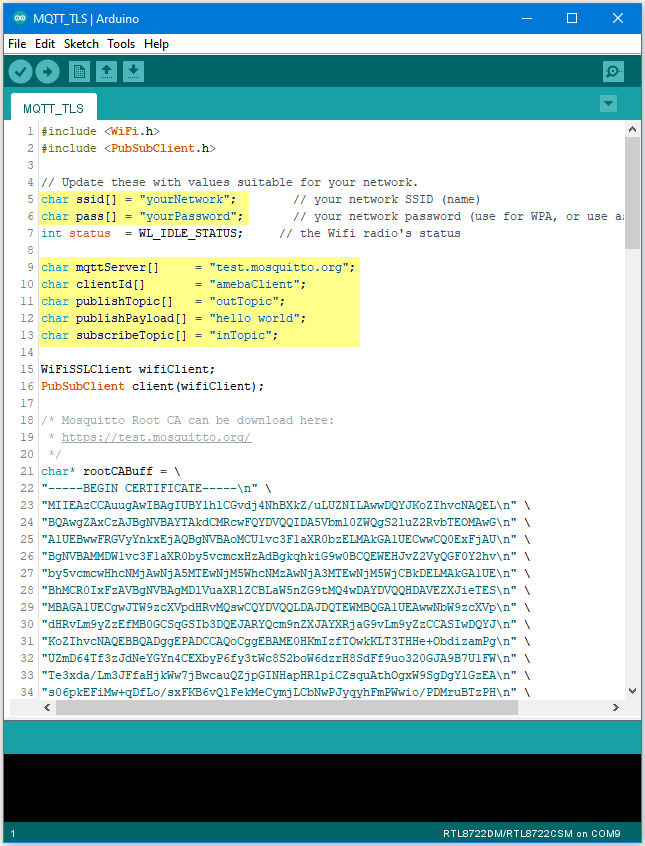 The “mqttServer” refers to the
MQTT-Broker, we use the free MQTT sandbox “test.mosquitto.org” for
testing. “clientId” is an identifier for MQTT-Broker to identify the
connected device. “publishTopic” is the topic of the published message,
we use “outTopic” in the example. The devices subscribe to “outTopic”
will receive the message. “publishPayload” is the content to be
published. “subscribeTopic” is to tell MQTT-broker which topic we want
to subscribe to. Next, compile the code and upload it to Ameba. Press
the reset button, then open the serial monitor
The “mqttServer” refers to the
MQTT-Broker, we use the free MQTT sandbox “test.mosquitto.org” for
testing. “clientId” is an identifier for MQTT-Broker to identify the
connected device. “publishTopic” is the topic of the published message,
we use “outTopic” in the example. The devices subscribe to “outTopic”
will receive the message. “publishPayload” is the content to be
published. “subscribeTopic” is to tell MQTT-broker which topic we want
to subscribe to. Next, compile the code and upload it to Ameba. Press
the reset button, then open the serial monitor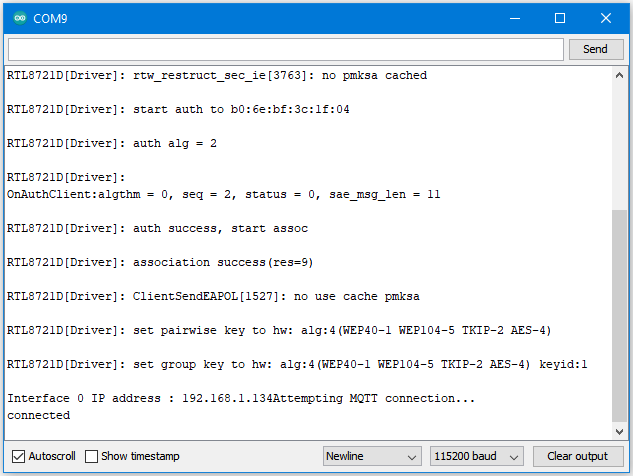 After Ameba is
connected to MQTT server, it sends the message “hello world” to
“outTopic”. To see the message, use another MQTT client. Refer to the
MQTT_Basic example guide on how to setup a PC-based MQTT client. If you
wish to use TLS client authentication in addition to server
authentication, you will need to generate an OpenSSL private key and
obtain a signed certificate from the server. For testing purposes,
signed certificates can be obtained from test.mosquitto.org by following
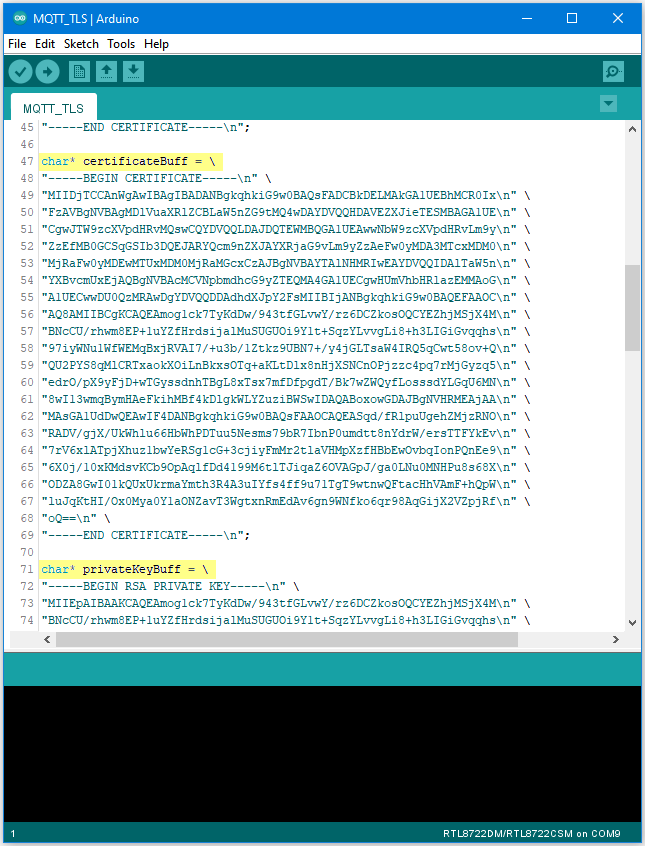
the guide at https://test.mosquitto.org/ssl/. Replace the character
strings “certificateBuff” and “privateKeyBuff” with your signed
certificate and OpenSSL private key, ensuring that they are formatted
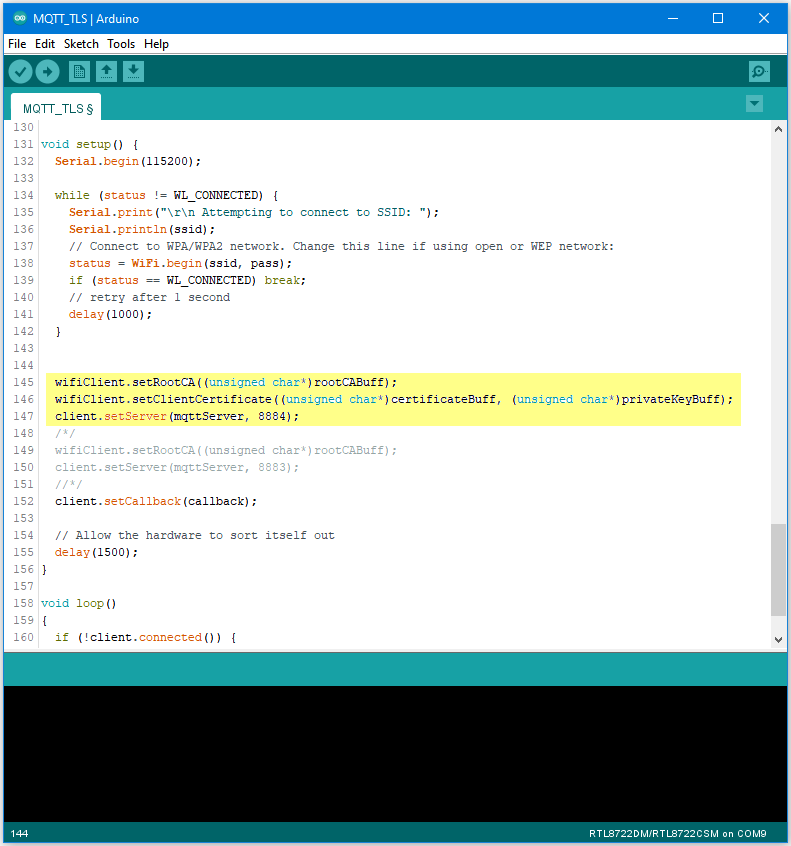
the same way as the shown in the example code. Also uncomment the
highlighted code to enable client authentication, and to change the MQTT
port number.
After Ameba is
connected to MQTT server, it sends the message “hello world” to
“outTopic”. To see the message, use another MQTT client. Refer to the
MQTT_Basic example guide on how to setup a PC-based MQTT client. If you
wish to use TLS client authentication in addition to server
authentication, you will need to generate an OpenSSL private key and
obtain a signed certificate from the server. For testing purposes,
signed certificates can be obtained from test.mosquitto.org by following
the guide at https://test.mosquitto.org/ssl/. Replace the character
strings “certificateBuff” and “privateKeyBuff” with your signed
certificate and OpenSSL private key, ensuring that they are formatted
the same way as the shown in the example code. Also uncomment the
highlighted code to enable client authentication, and to change the MQTT
port number.