[RTL8722CSM] [RTL8722DM] Use Ameba as Server to communicate with Client
Materials
Ameba x 1
- Laptop(Make sure it is connected to the same network domain as
Ameba, and tcp tools are installed.)
Example
In this example, we first connect Ameba to WiFi, then we use Ameba as server to communicate with client.
First, we make sure the correct Ameba development board is set in “Tools” -> “Board”
Then, open the Simple WiFi Server example in “File” -> “Examples” -> “AmebaWiFi” -> “SimpleServerWiFi”
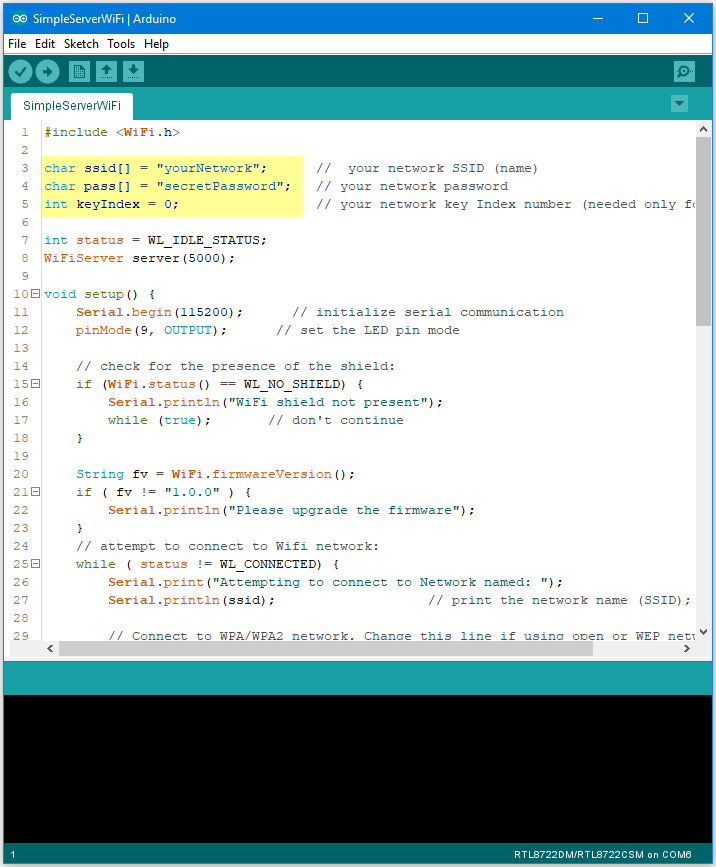
In the sample code, modify the highlighted parameters and enter the ssid and password for your WiFi connection.
Next, upload the code, then press the reset button on Ameba. At this moment, you will see the connection information is displayed in the console.
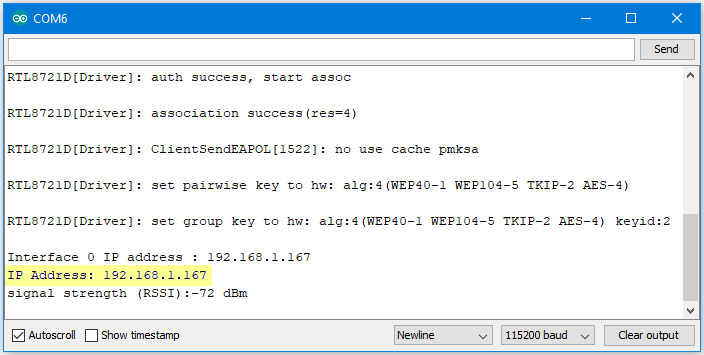
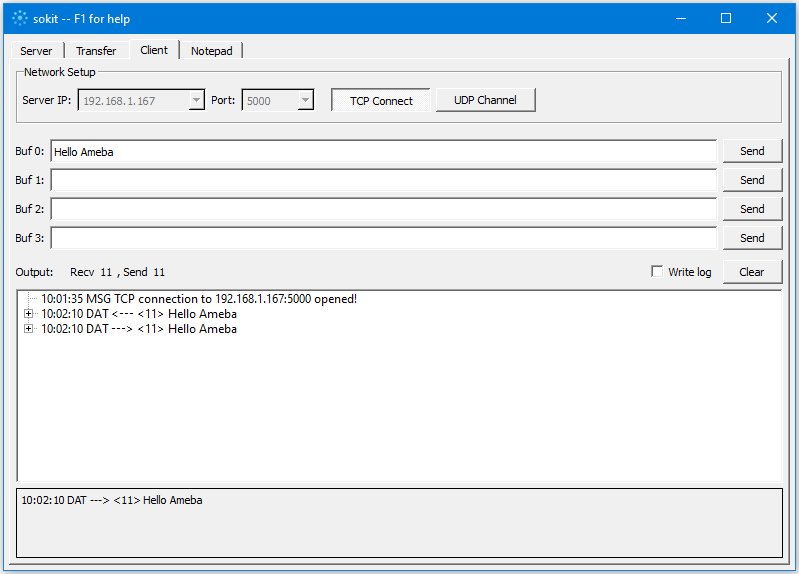
Click on the “Client” tab to choose the client mode, specify the IP and port of the server, then click “TCP Connect”.
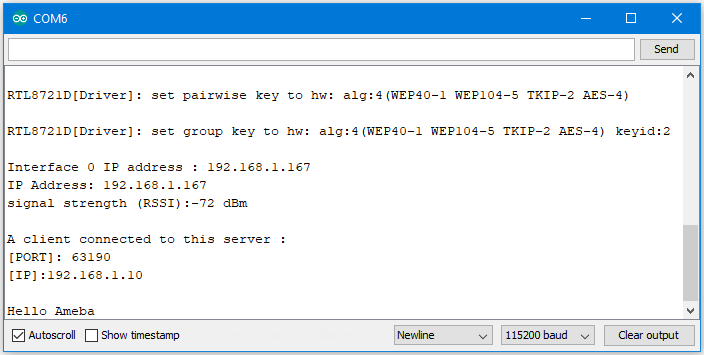
If the connection is established successfully, the server shows a message: “A client connected to this Server”, and the IP and port of the connected client.
In this example, when the client and server are connected and the client sends a string to Ameba server, the Ameba server returns the identical string back to the client.
The string sent to server is returned and showed at the client side.
Code reference