[RTL8722CSM] [RTL8722DM] Google Cloud IoT
Preparation
Ameba x 1
Google Cloud IoT Configuration
1. Select or create a Cloud Platform project In the Google Cloud
Console, select an existing project or create a new project. You will
need a Project ID to use with Ameba.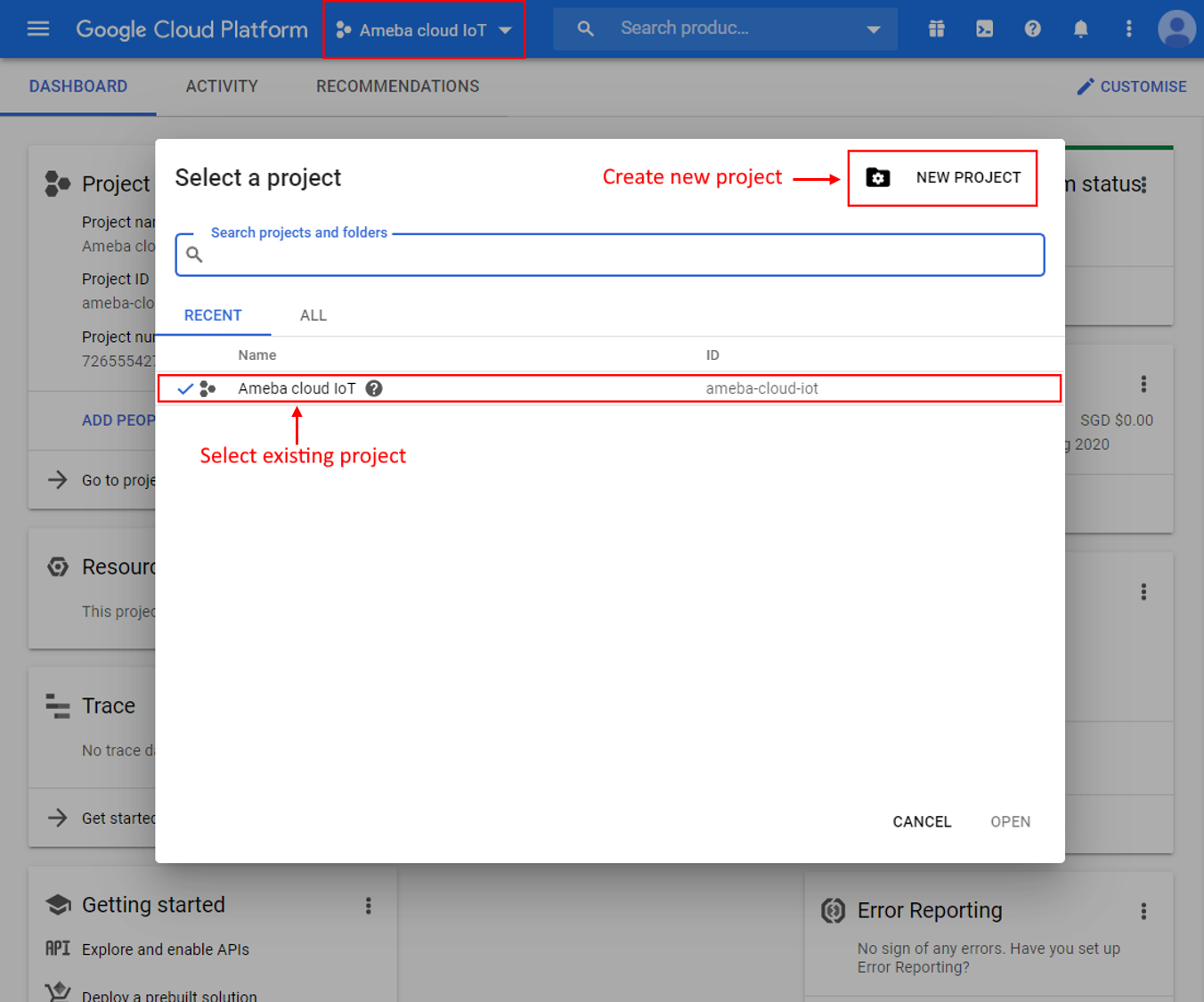 If creating a new
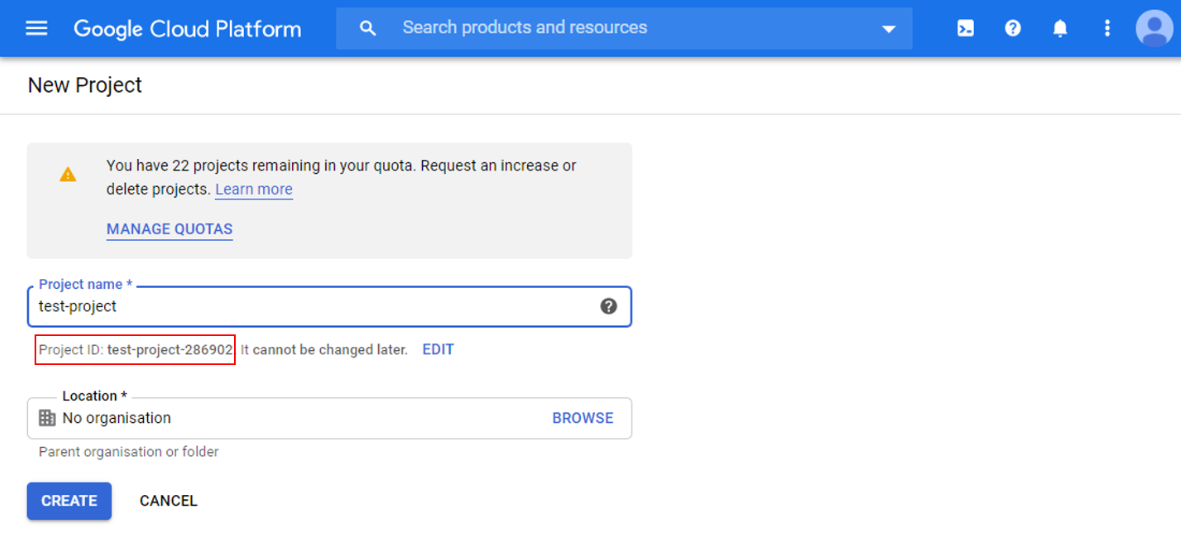
project, enter a project name, and take note of the Project ID generated.
If creating a new
project, enter a project name, and take note of the Project ID generated.
2. Enable billing for your project Billing needs to be enabled for your project to use Google Cloud Platform features. Follow the guide in Google cloud documentation to enable billing. https://cloud.google.com/billing/docs/how-to/modify-project
3. Enable the Cloud IoT Core API In Google Cloud console, click on the top
left menu button and search for IoT Core.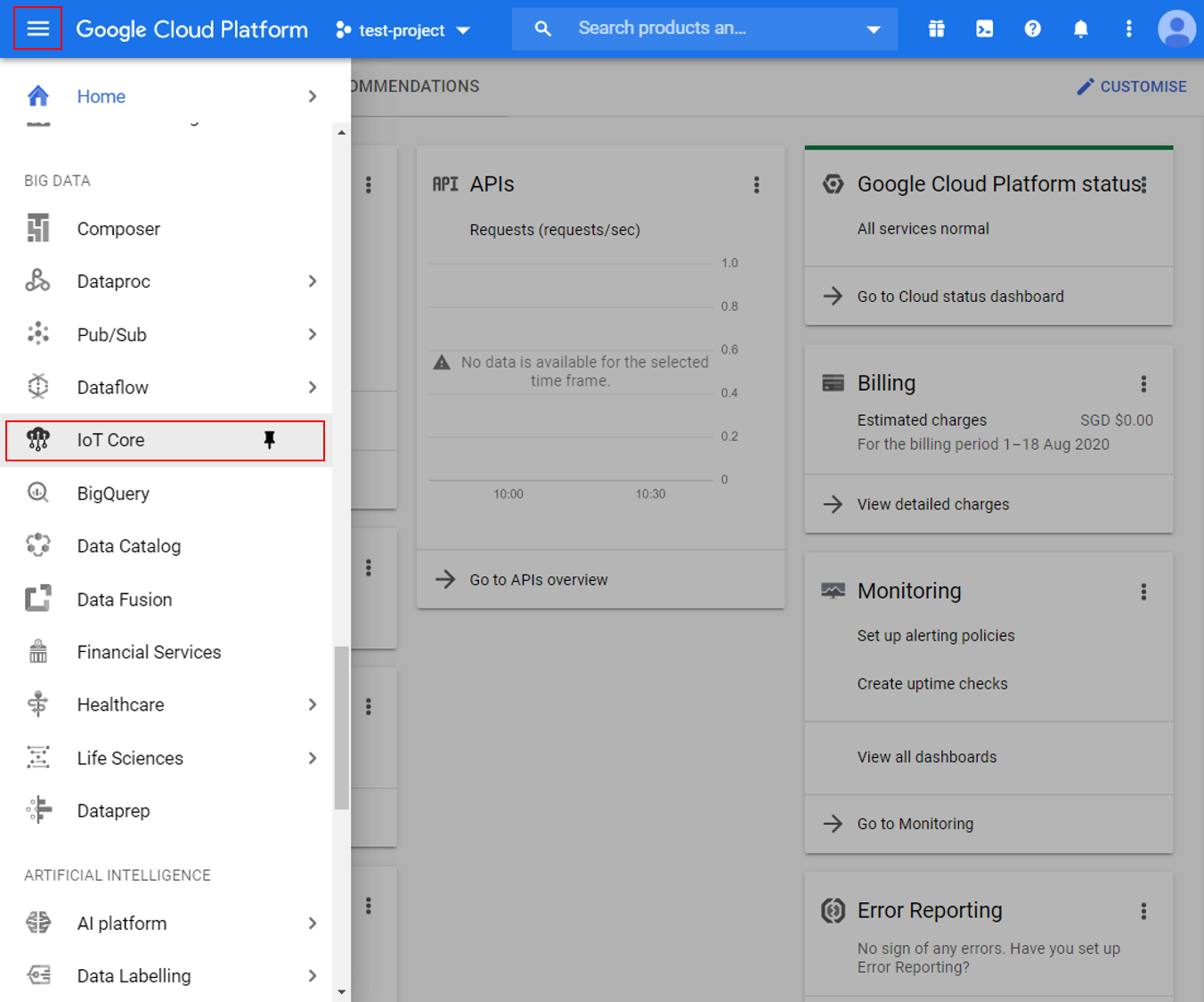 Click enable to
activate Google Cloud IoT API for your project.
Click enable to
activate Google Cloud IoT API for your project.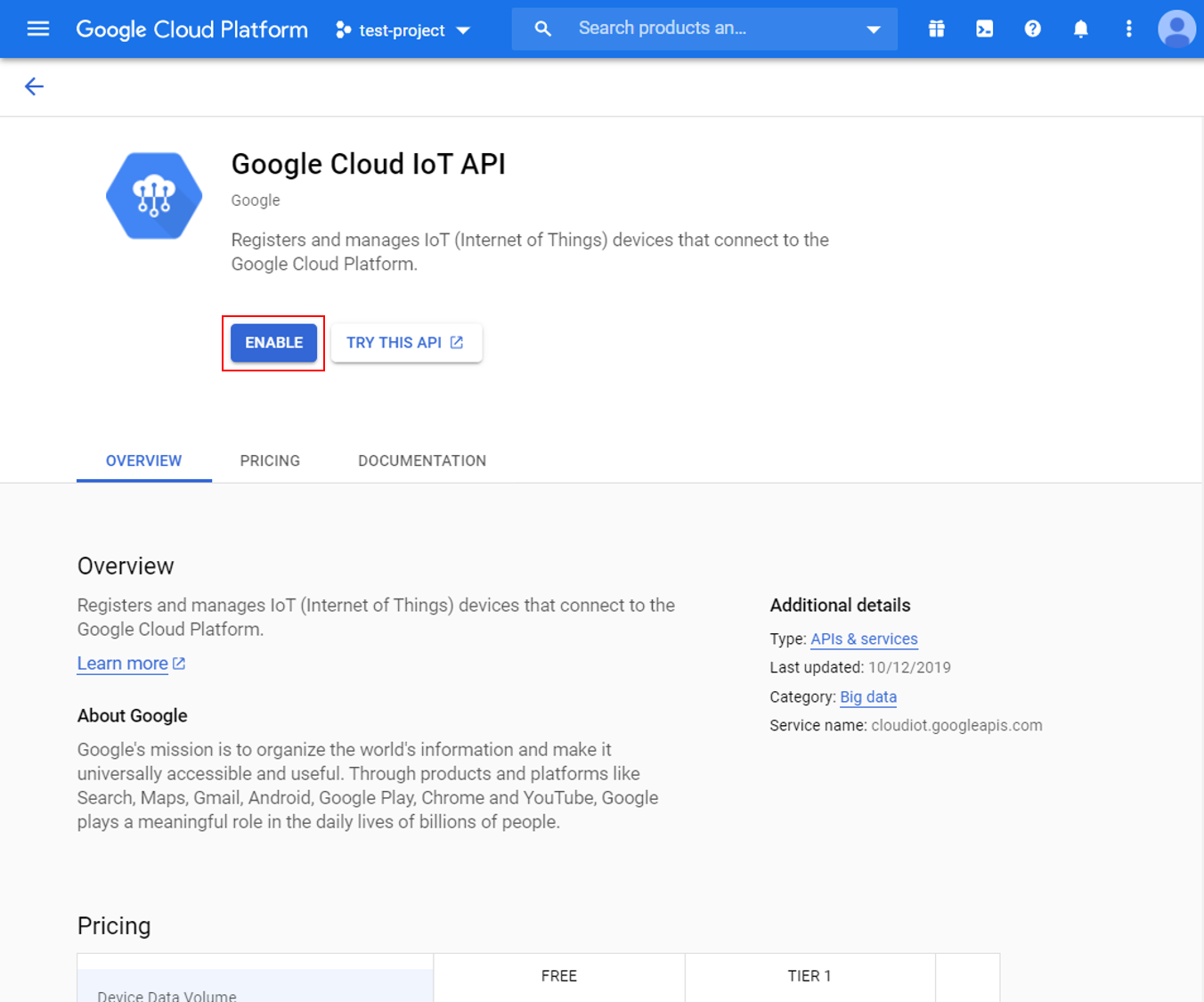
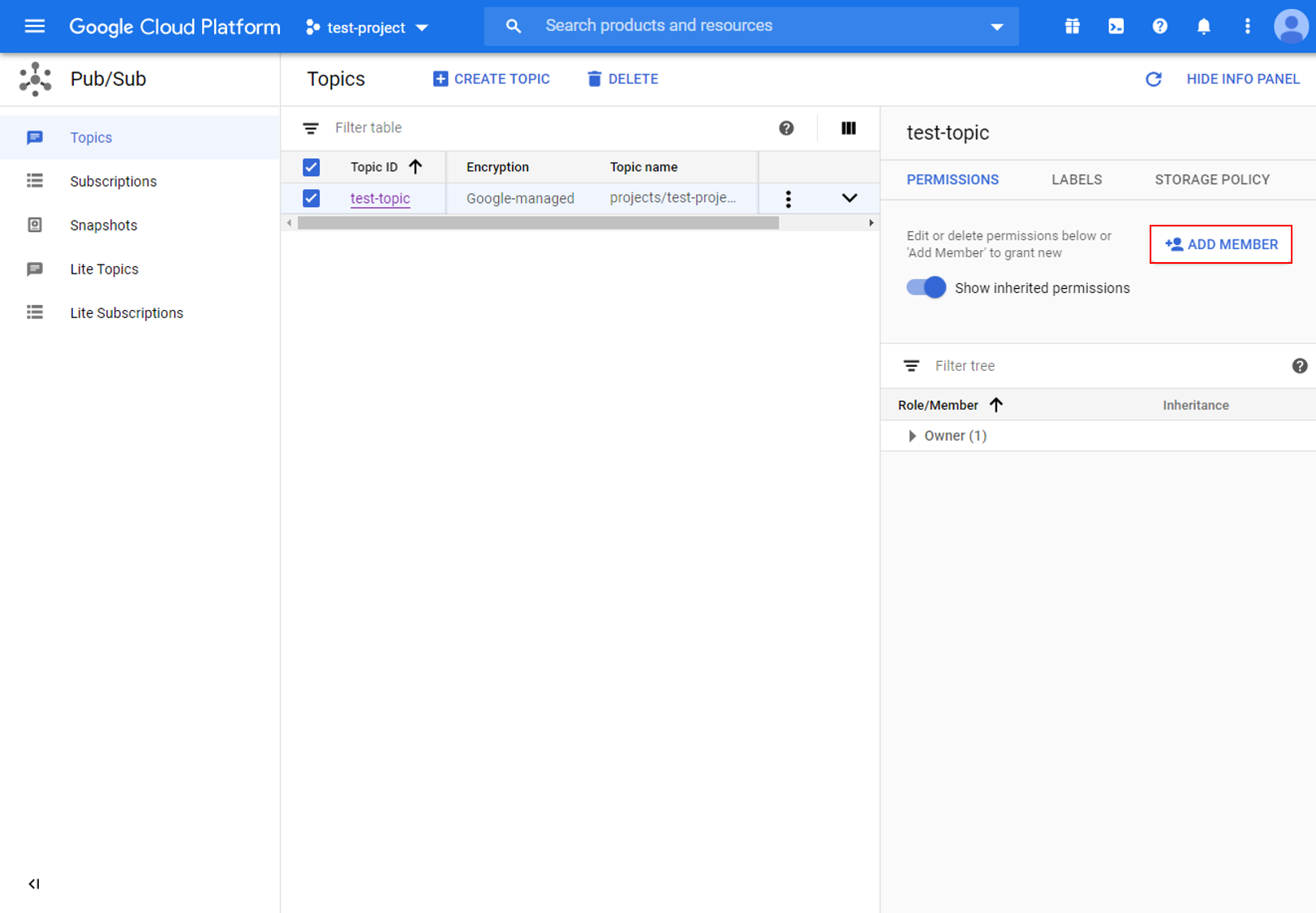
4. Create a Cloud Pub/Sub topic In Google Cloud console, click on the top left menu
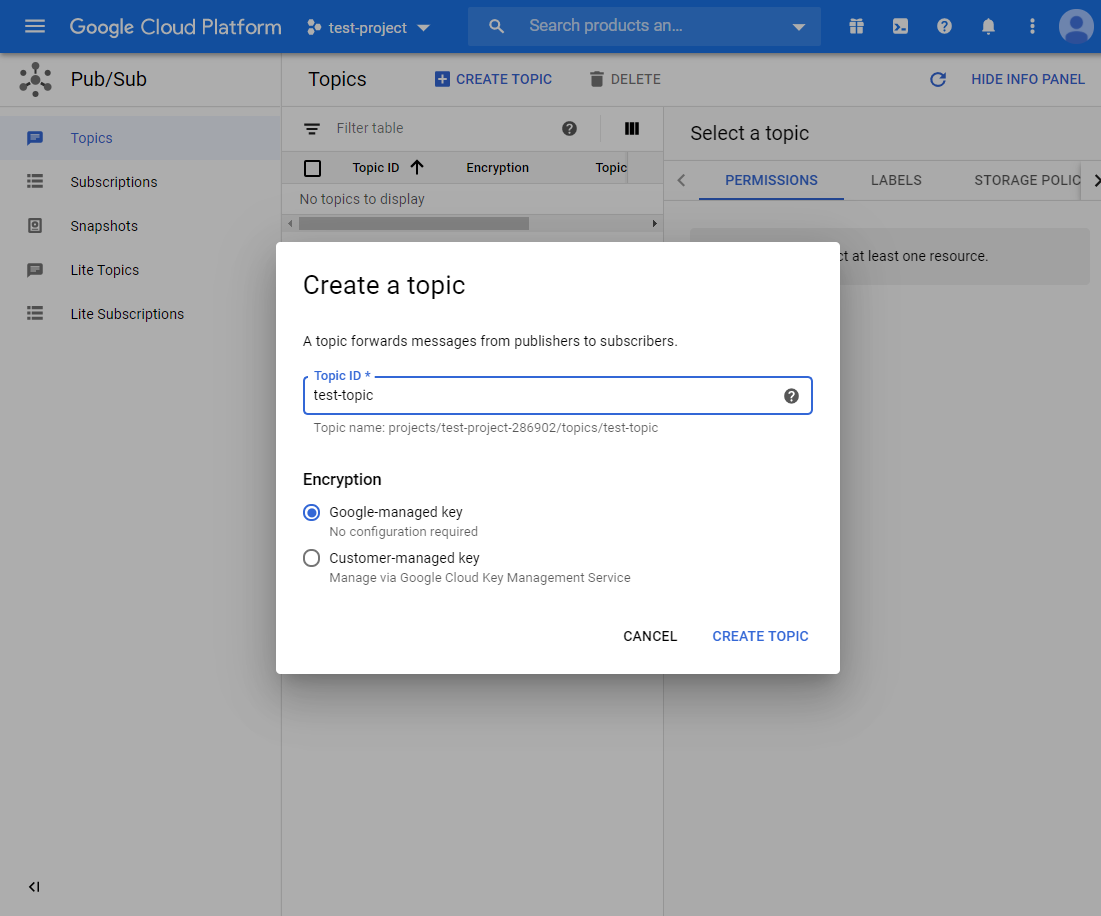
button and search for Pub/Sub.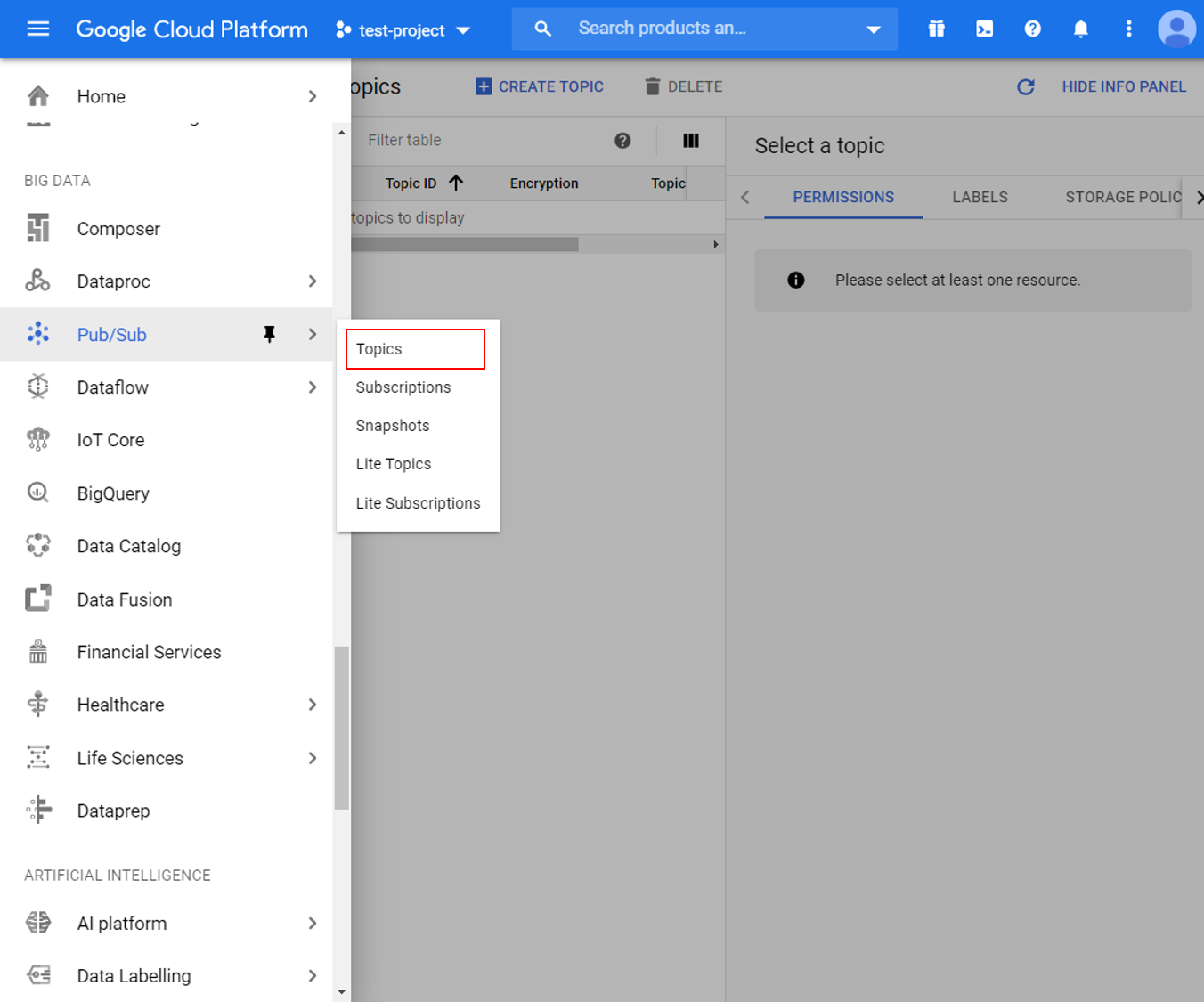 Create a new topic for your
project and give it a suitable topic ID.
Create a new topic for your
project and give it a suitable topic ID.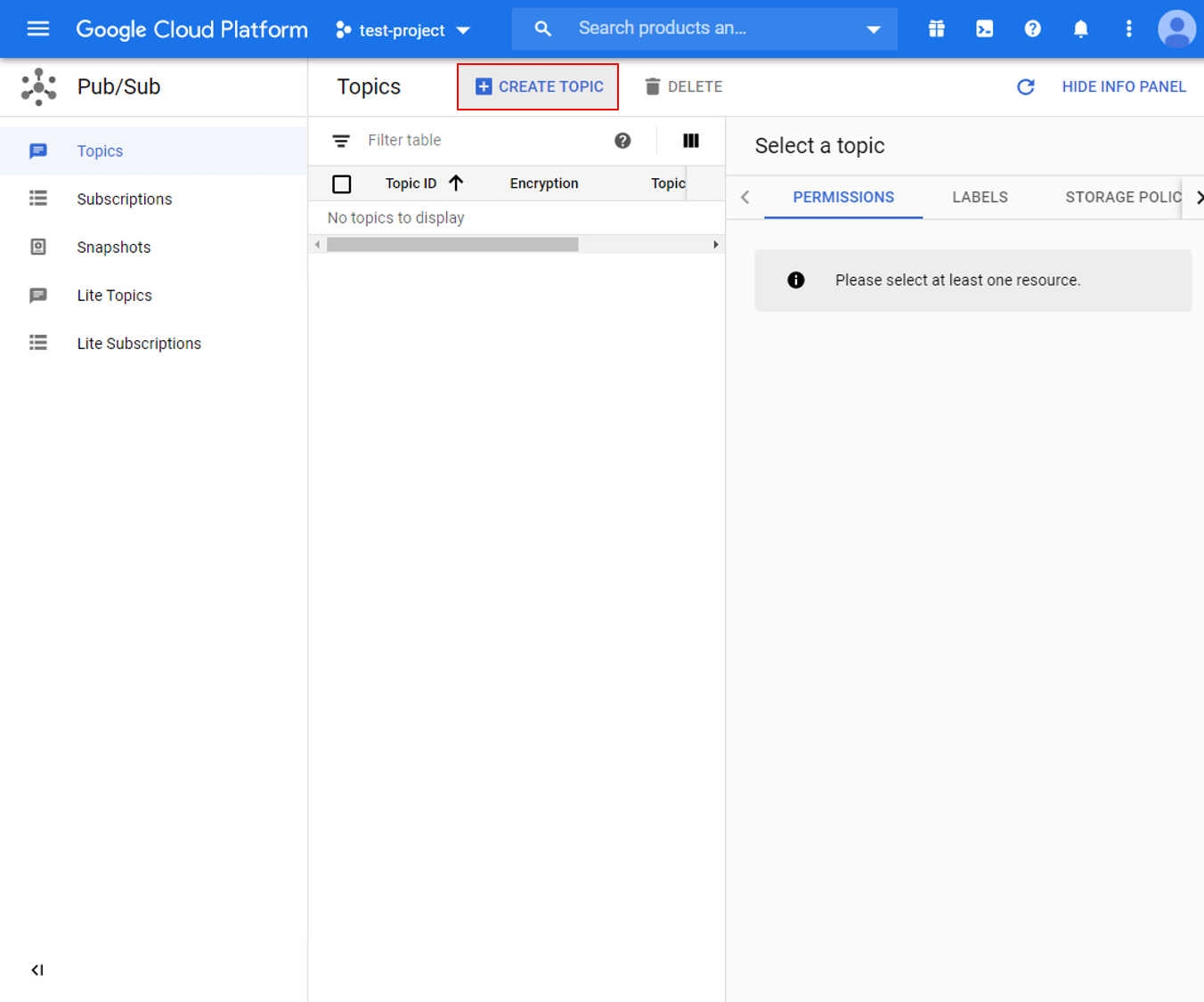
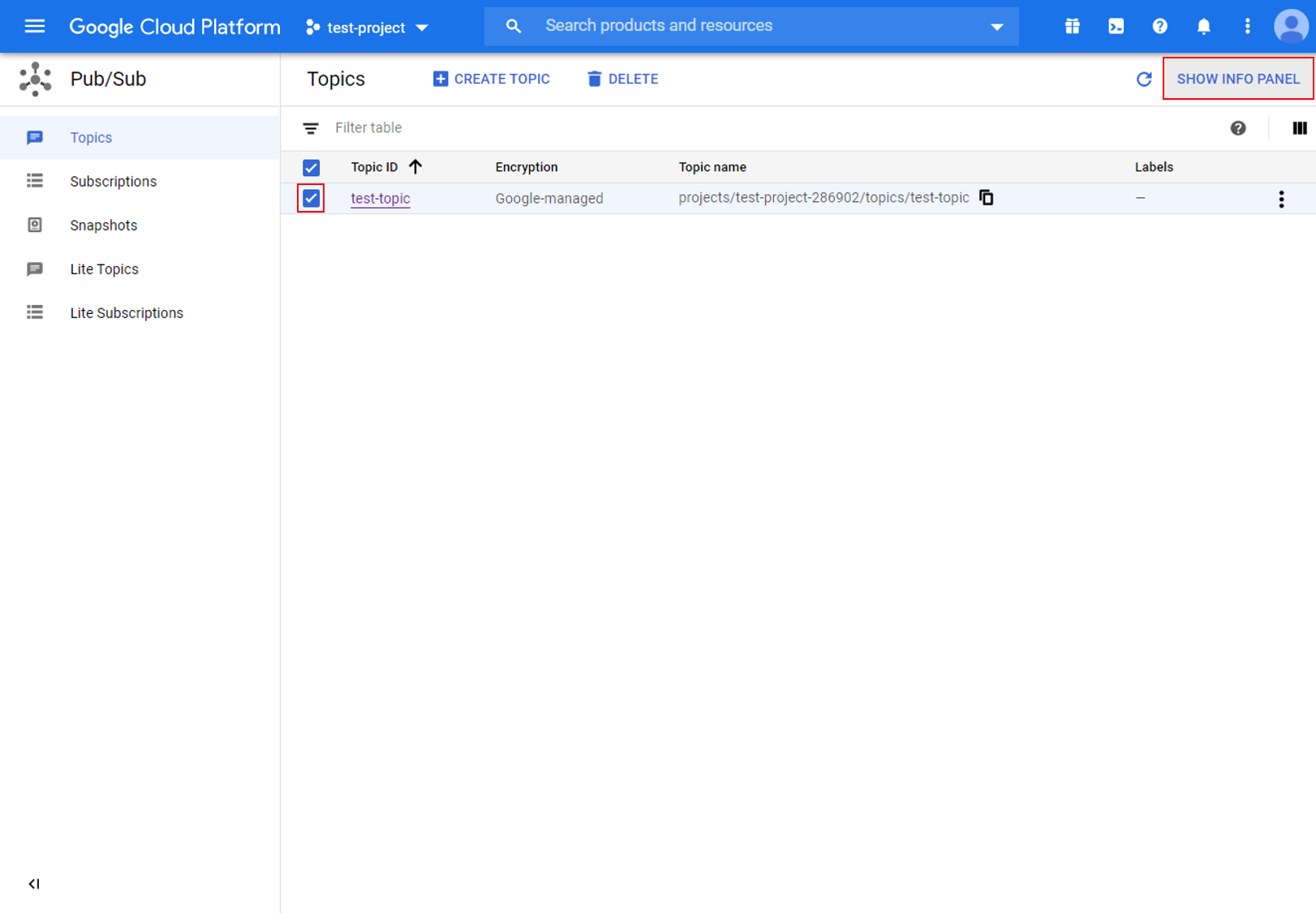
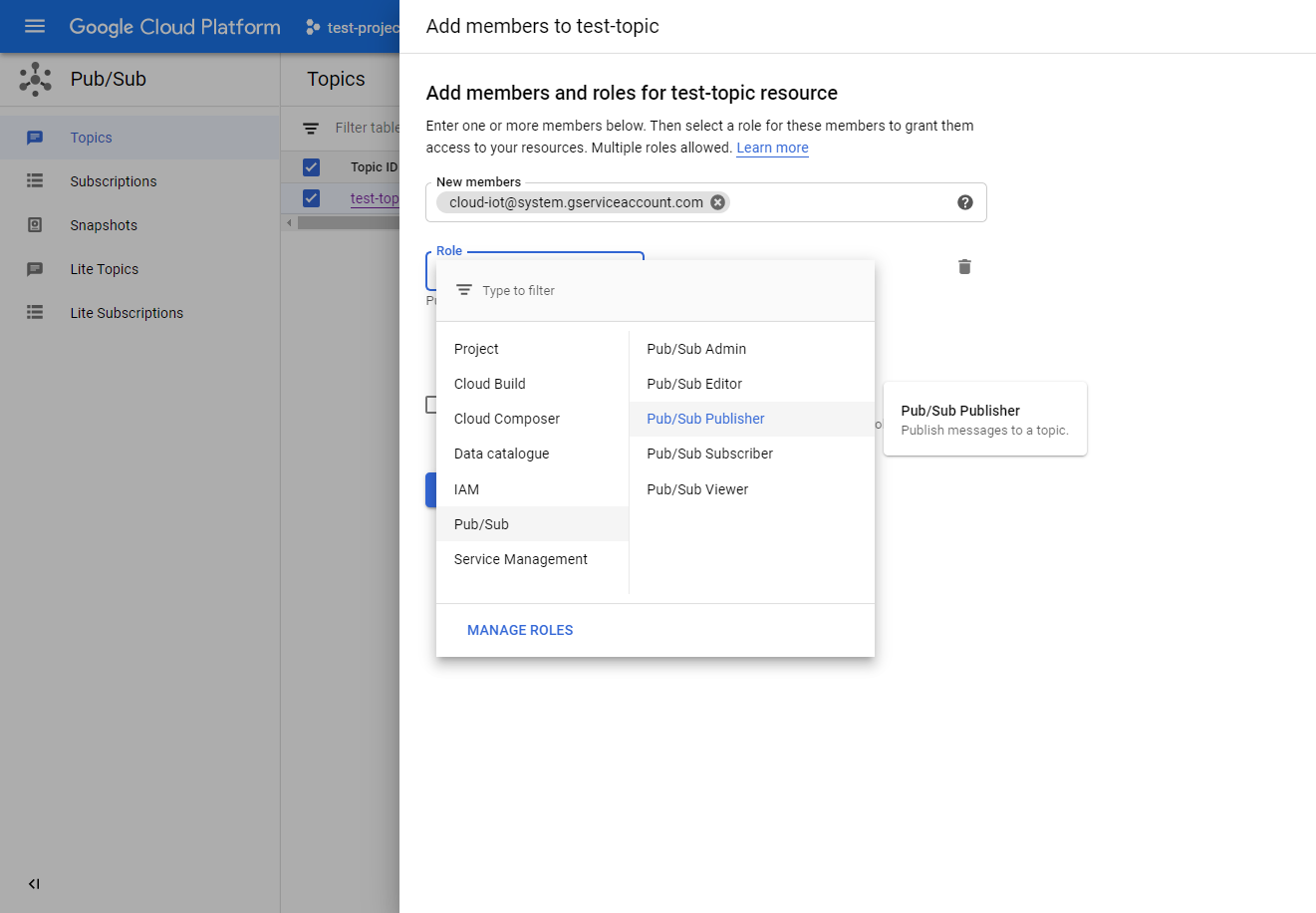
 After the
topic is created, go to the permissions tab of the info panel, and add
“cloud-iot@system.gserviceaccount.com” with the role of “Pub/Sub
Publisher”.
After the
topic is created, go to the permissions tab of the info panel, and add
“cloud-iot@system.gserviceaccount.com” with the role of “Pub/Sub
Publisher”.
5.Create a device registry Go back to the IoT Core settings page and create a new
registry.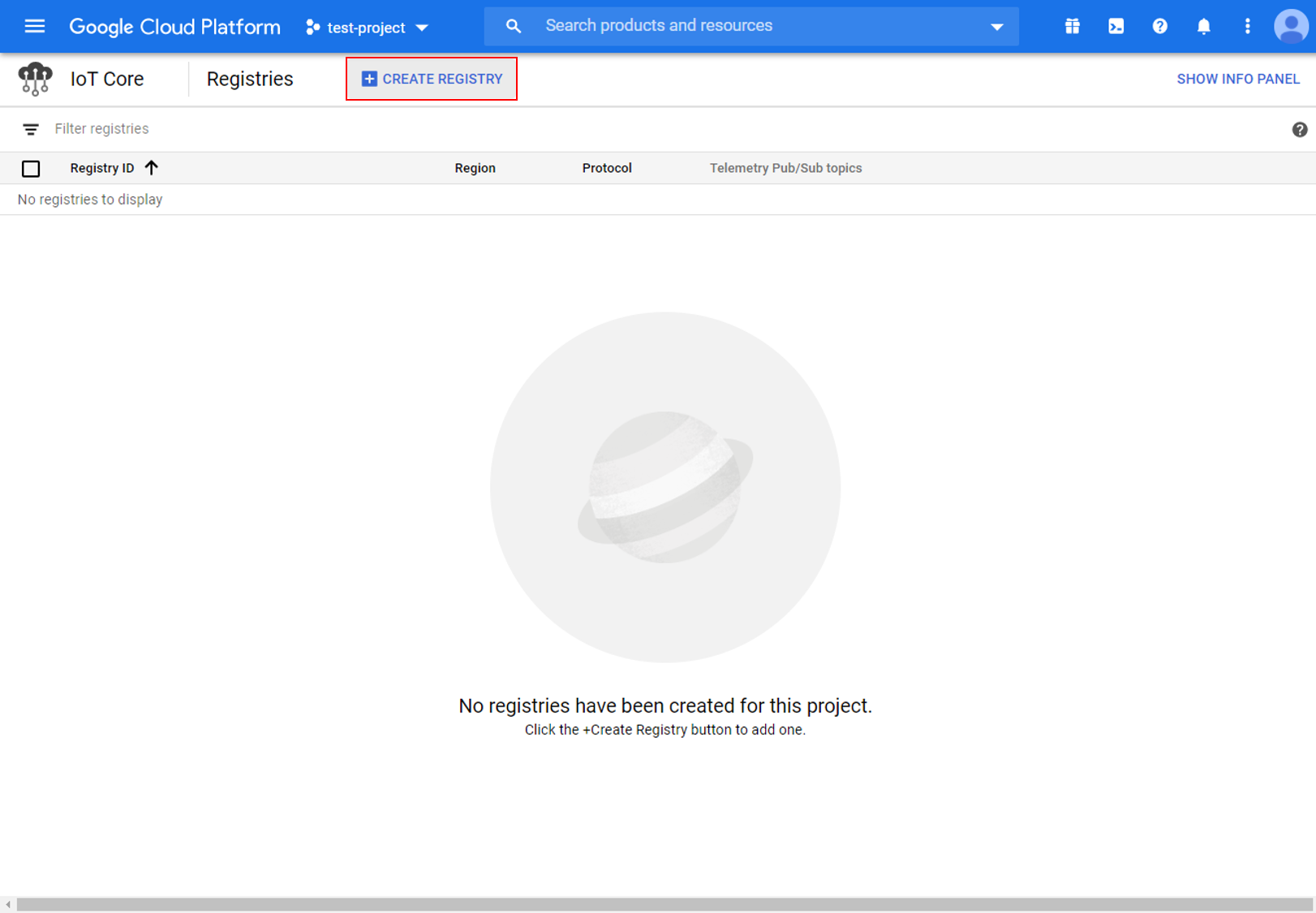 Choose a suitable Registry ID and
in which to store data. Remember
the **Registry ID and Regionfor use with Ameba later. For the
Pub/Sub topic, select the topic created in the previous
step.
Choose a suitable Registry ID and
in which to store data. Remember
the **Registry ID and Regionfor use with Ameba later. For the
Pub/Sub topic, select the topic created in the previous
step.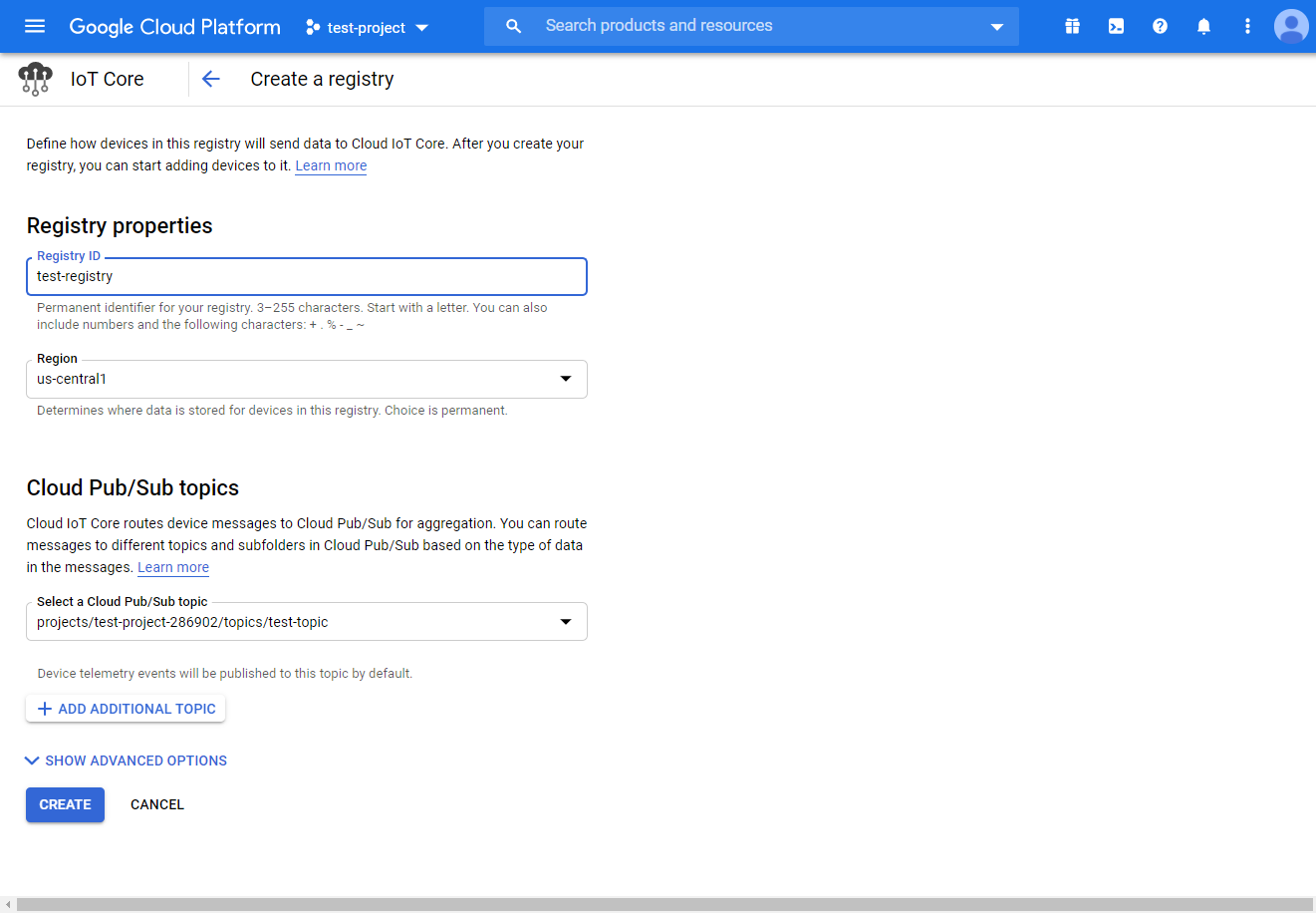
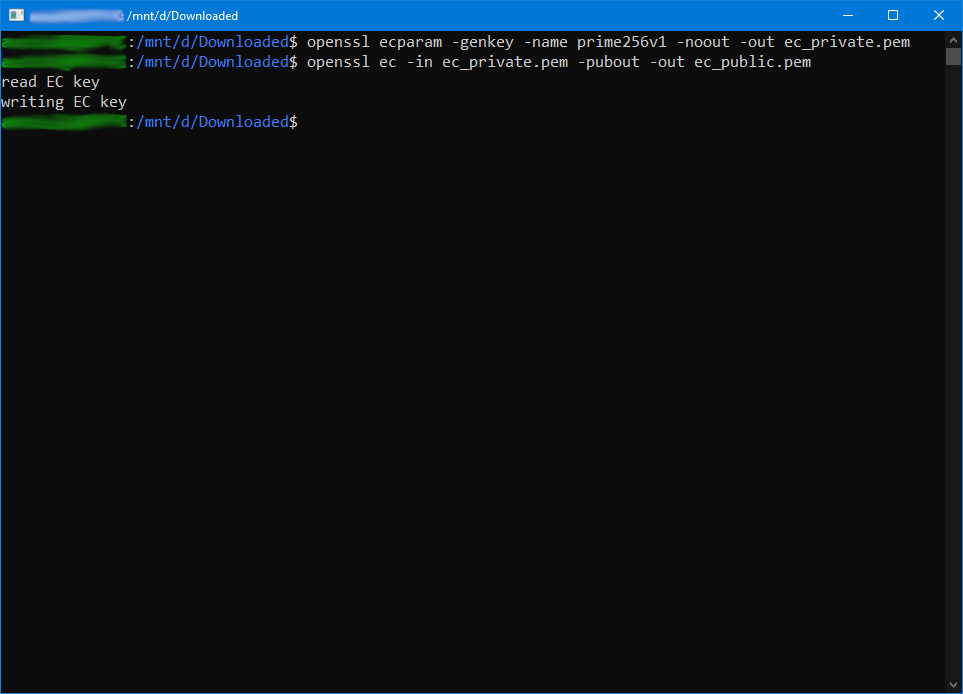
6. Create a public/private key pair Using Openssl in a terminal in Windows/Linux/MacOs, run the following commands to generate a private and public key pair. Two files will be created by these commands, “ec_private.pem” containing the private key, and “ec_public.pem” containing the public key.
$ openssl ecparam -genkey -name prime256v1 -noout -out ec_private.pem
$ openssl ec -in ec_private.pem -pubout -out ec_public.pem
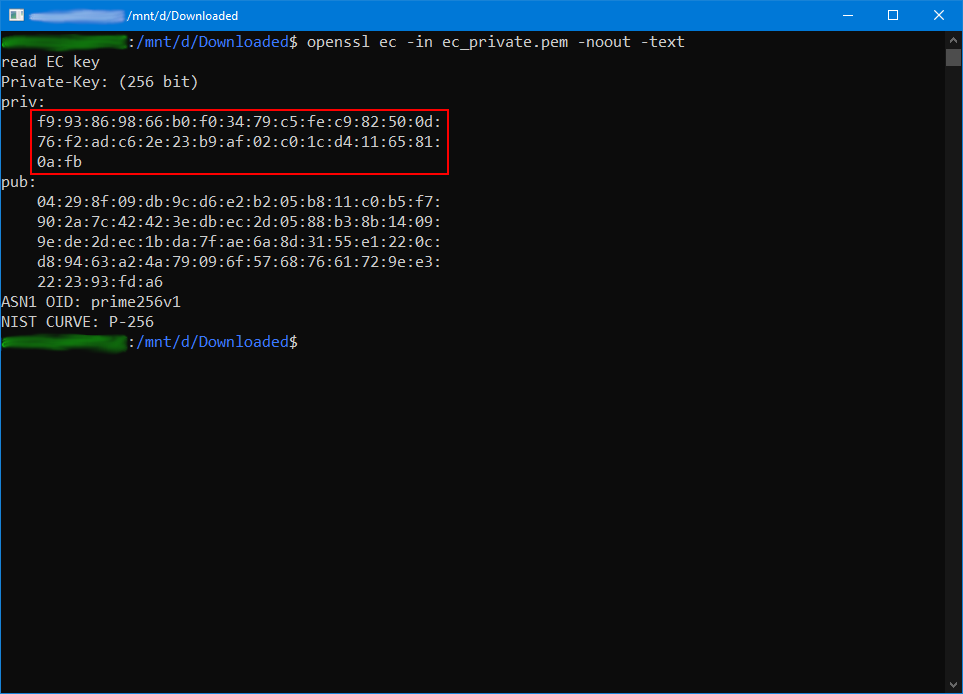
 Run the next command to extract out the private key, and
remember the highlighted string of hexadecimal numbers for use with
Ameba later.
Run the next command to extract out the private key, and
remember the highlighted string of hexadecimal numbers for use with
Ameba later.
$ openssl ec -in ec_private.pem -noout -text
 7. Create a device Go back to the IoT Core settings page and
create a new device.
7. Create a device Go back to the IoT Core settings page and
create a new device.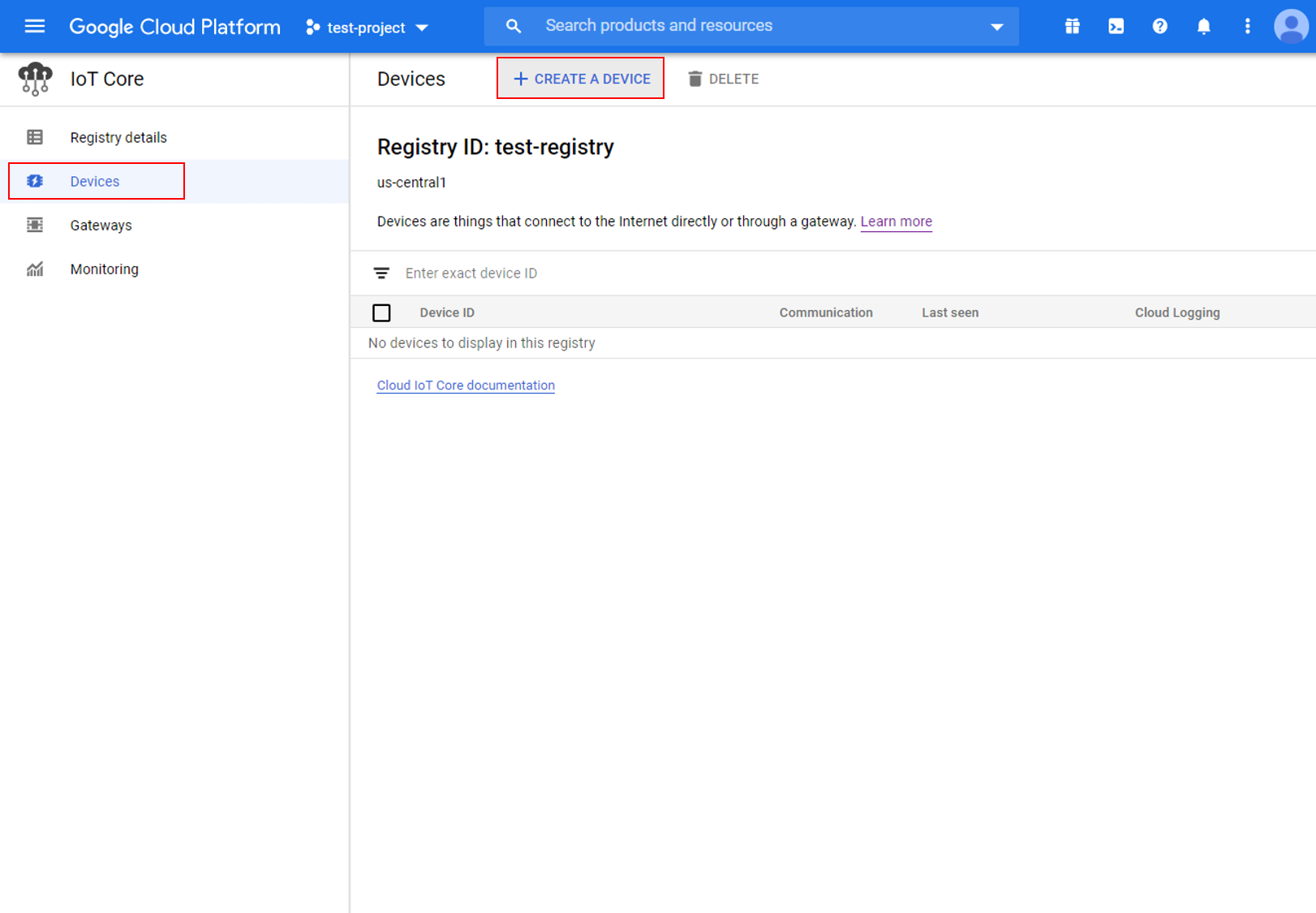 Give the device a suitable Device
ID and remember it for use with Ameba later.
Give the device a suitable Device
ID and remember it for use with Ameba later.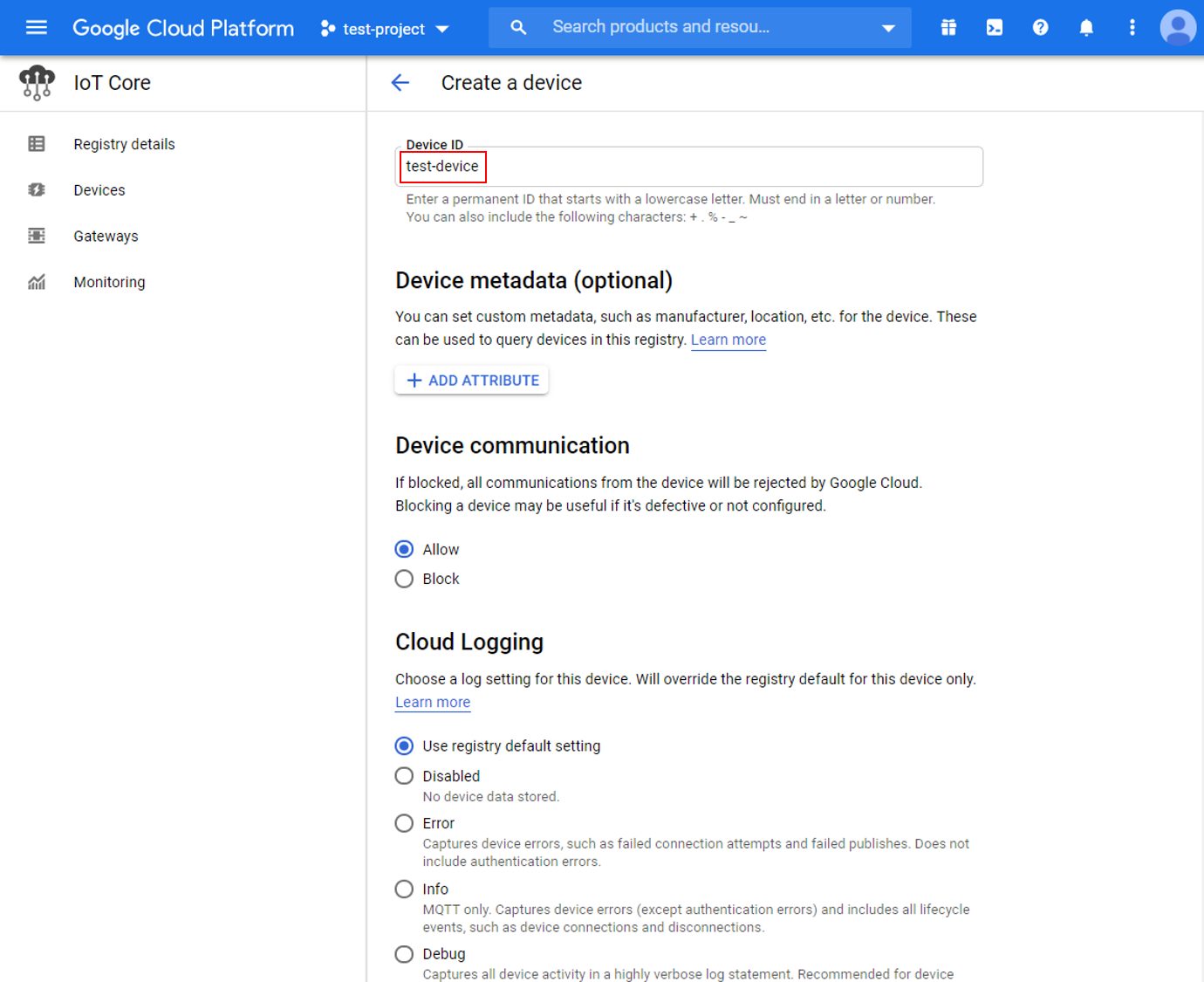 In the
authentication section of the additional options, upload the previously
generated “ec_public.pem” public key.
In the
authentication section of the additional options, upload the previously
generated “ec_public.pem” public key.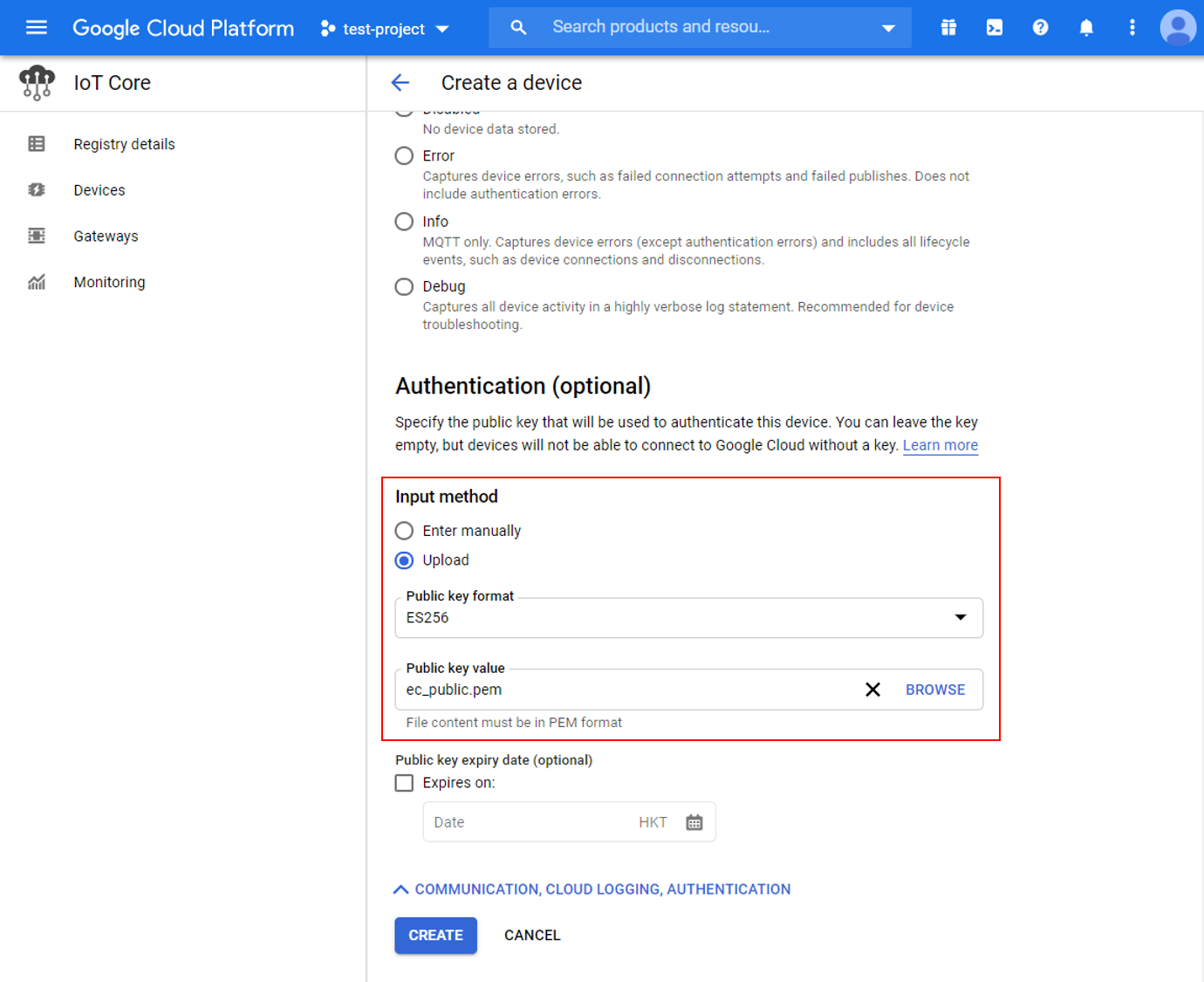 8. Create a Cloud
Pub/Sub subscription To observe messages sent by Ameba, create a
subscription in Pub/Sub.
8. Create a Cloud
Pub/Sub subscription To observe messages sent by Ameba, create a
subscription in Pub/Sub.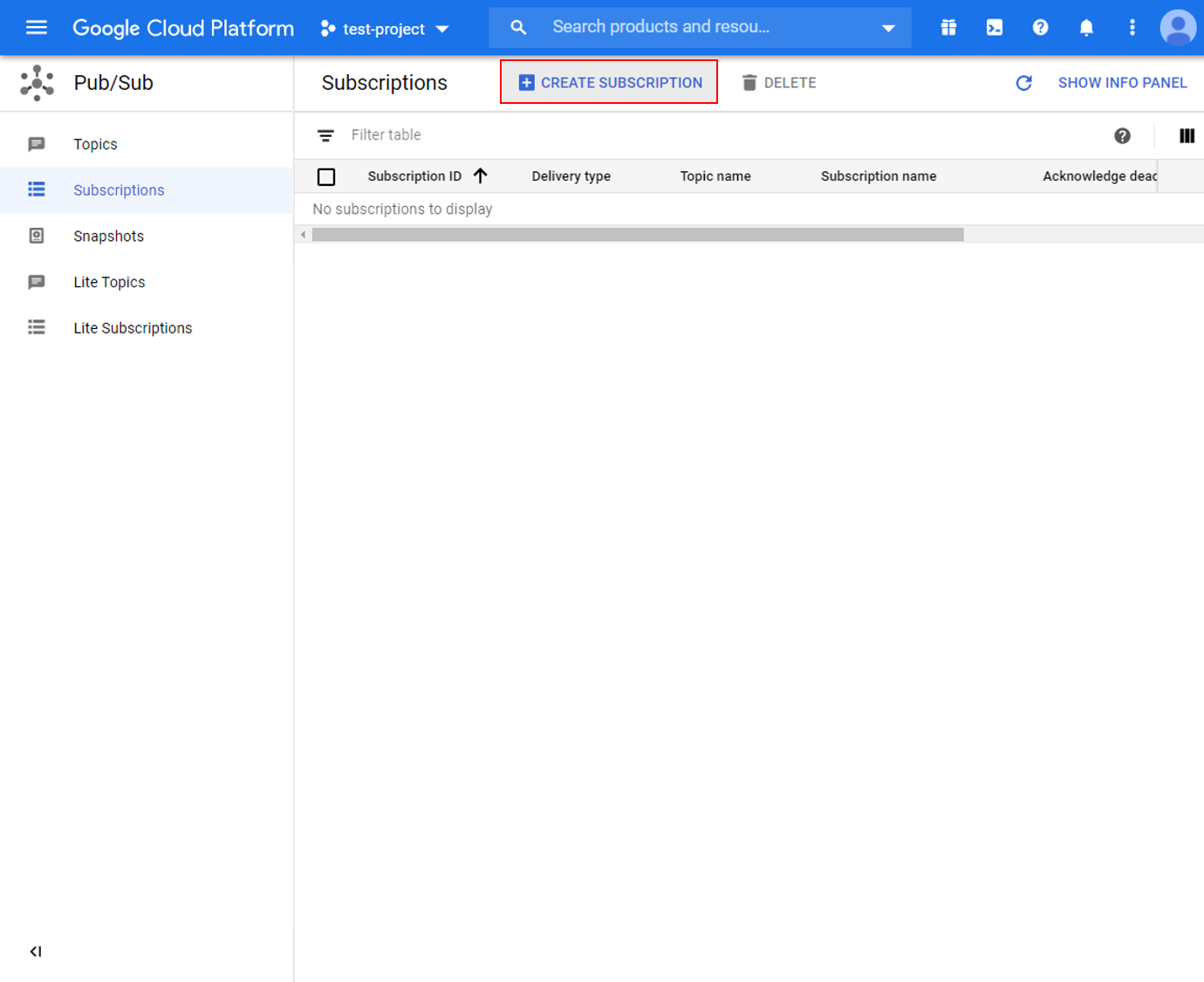 Choose a suitable subscription ID
and select the previously created topic.
Choose a suitable subscription ID
and select the previously created topic.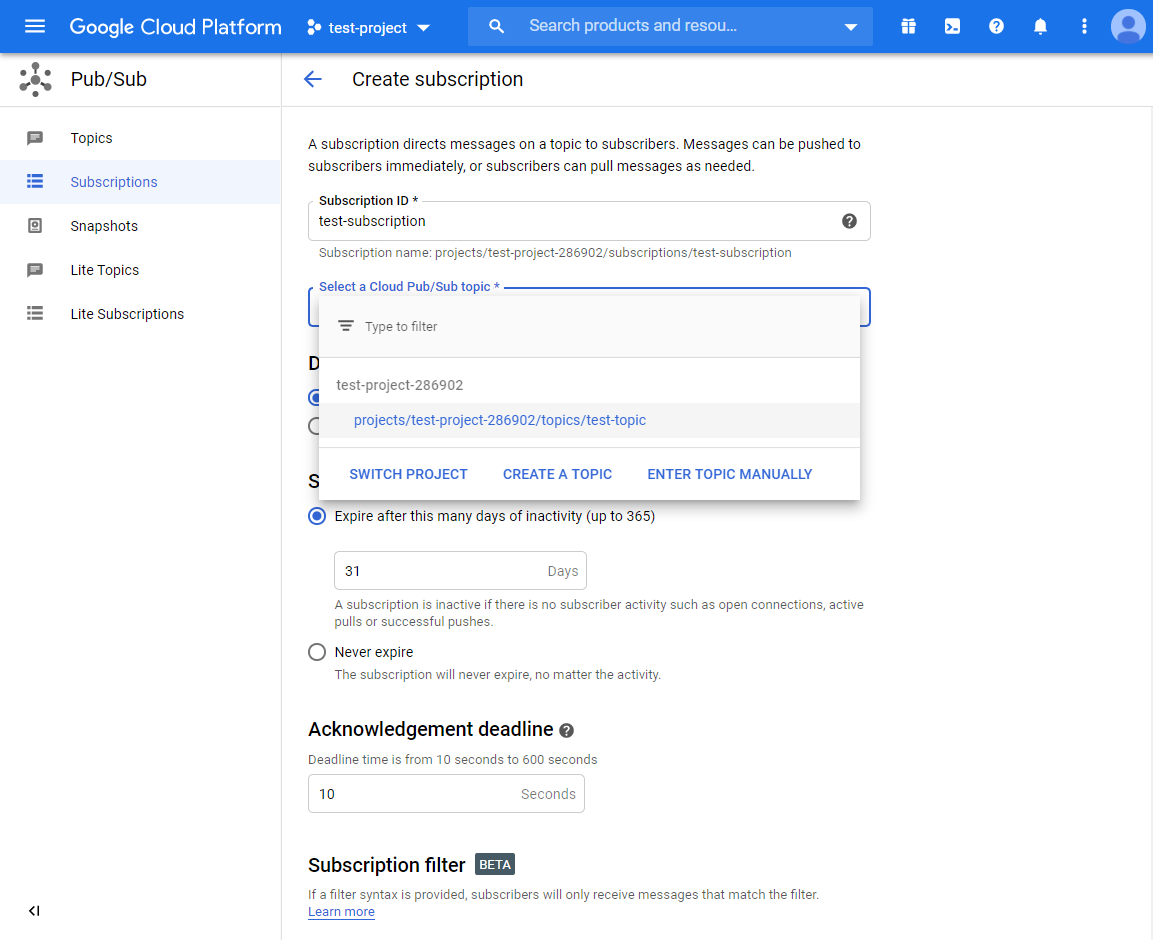
Example
Open the example in “File” -> “Examples” -> “AmebaMQTTClient” ->
“Google_Cloud_IoT”.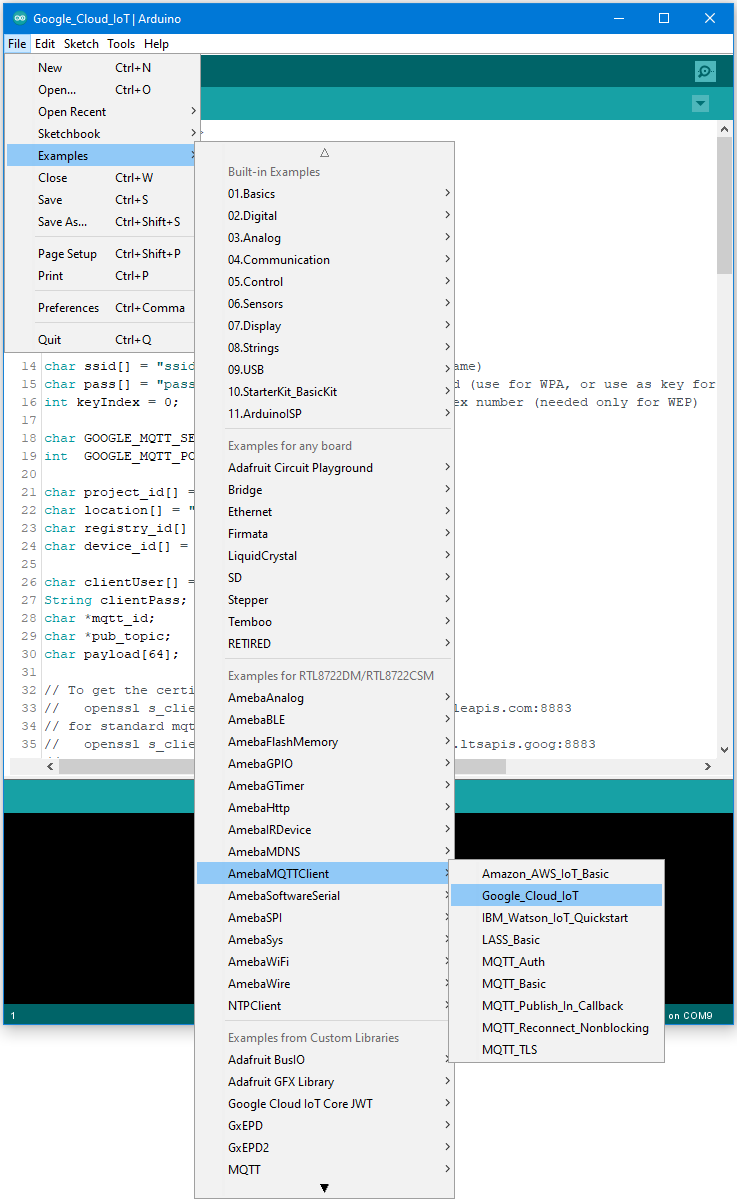 Enter the required information in the
highlighted sections below.
Enter the required information in the
highlighted sections below.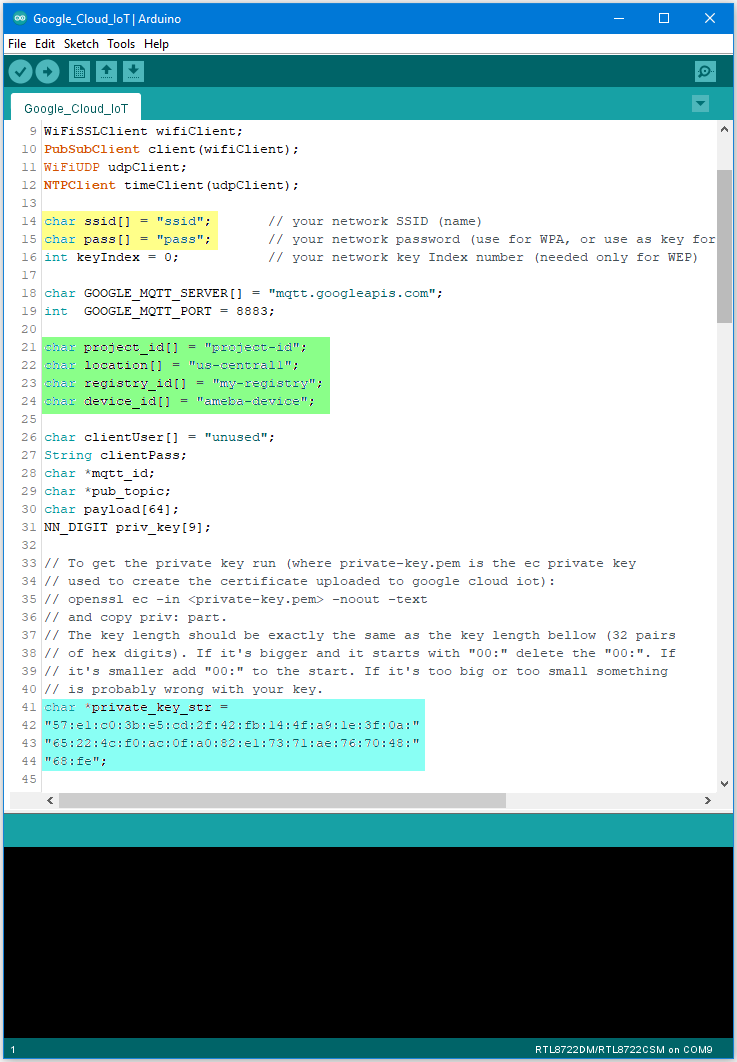 In the yellow section, enter the
SSID and password required to connect to your WiFi network. In the green
section, enter the Project ID, server Region, Registry ID and Device ID
previously configured in Google Cloud console. In the blue section,
enter the hexadecimal string previously extracted from the private key.
Upload the code and press the reset button on Ameba once the upload is
finished. Open the serial monitor and observe as Ameba connects and
sends messages to Google Cloud IoT.
In the yellow section, enter the
SSID and password required to connect to your WiFi network. In the green
section, enter the Project ID, server Region, Registry ID and Device ID
previously configured in Google Cloud console. In the blue section,
enter the hexadecimal string previously extracted from the private key.
Upload the code and press the reset button on Ameba once the upload is
finished. Open the serial monitor and observe as Ameba connects and
sends messages to Google Cloud IoT.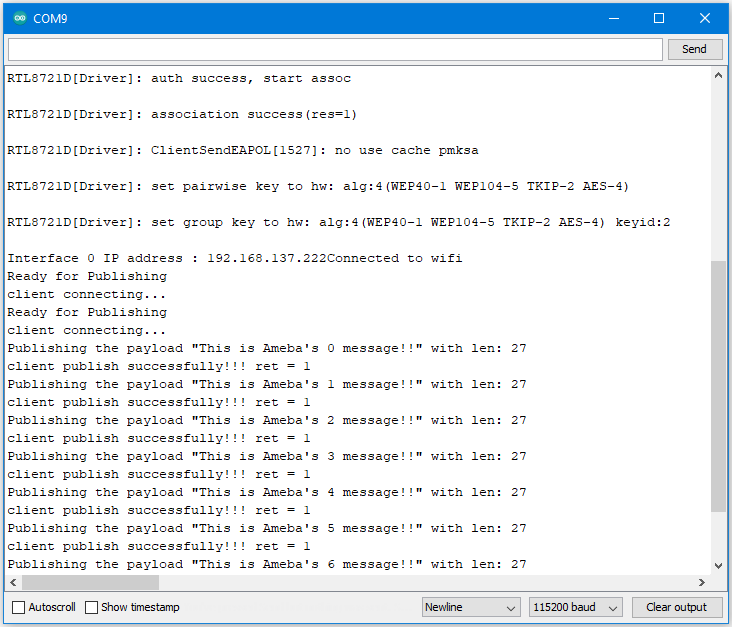 In Google Cloud console,
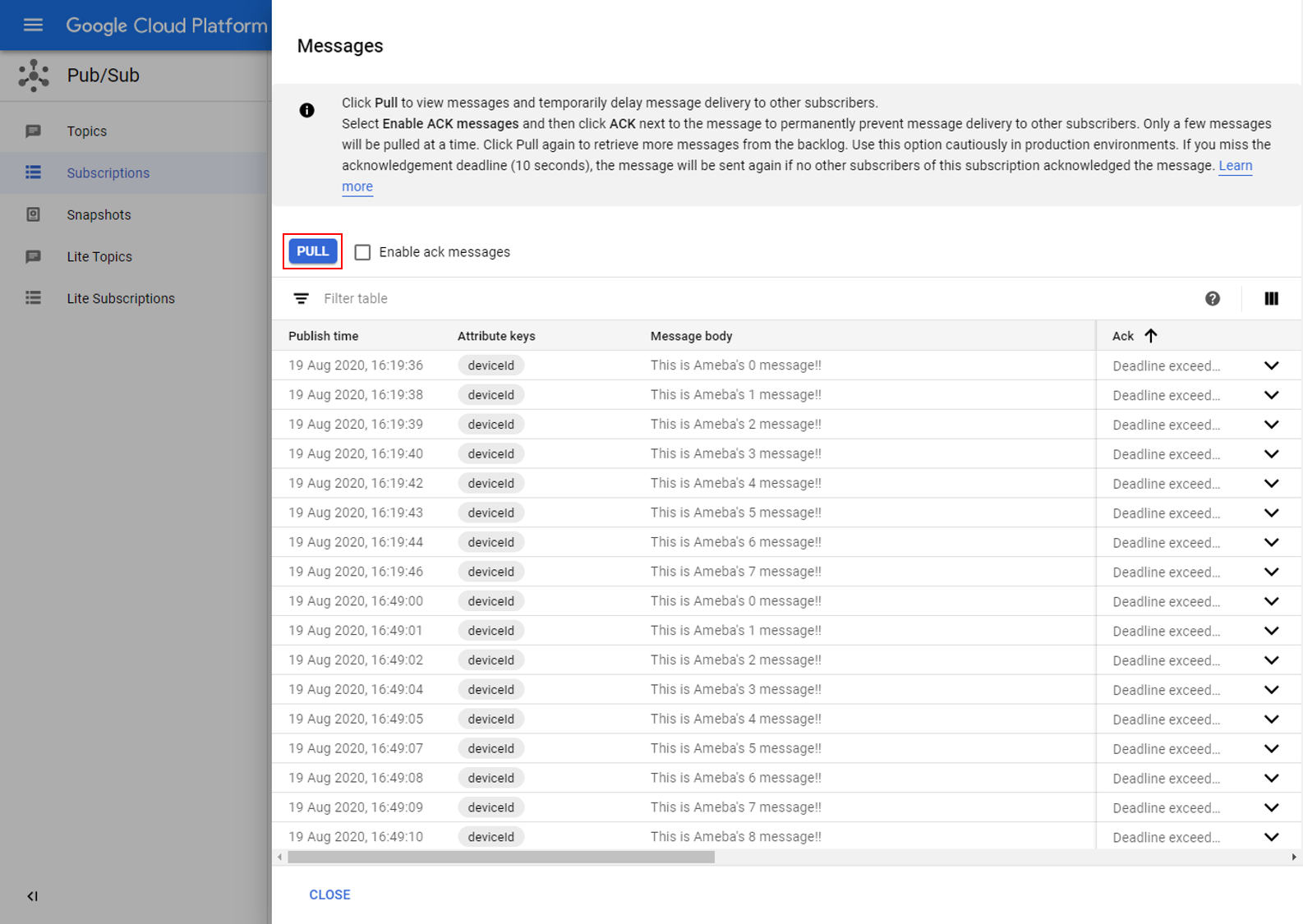
go to Pub/Sub subscriptions, select the previously created subscription,
and click view messages. Here you can view the messages sent by
Ameba.
In Google Cloud console,
go to Pub/Sub subscriptions, select the previously created subscription,
and click view messages. Here you can view the messages sent by
Ameba.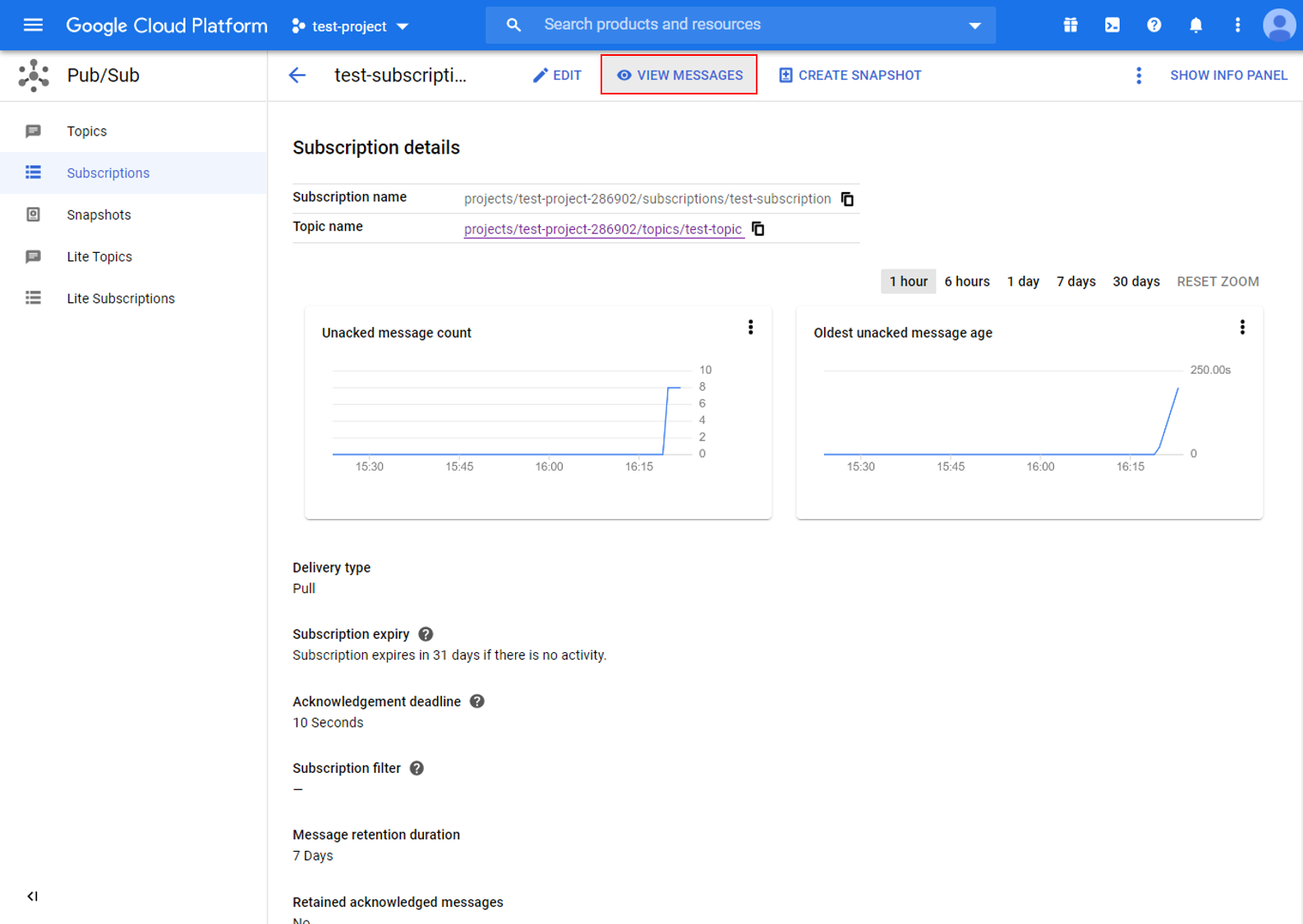
Code Reference
In setup(), we set up RootCA which is required to form a TLS connection with Google’s servers.
wifiClient.setRootCA((unsigned char*)rootCABuff);
In loop(), each loop checks the Internet status and re-connect to it when the environment has a problem.
if (WiFi.status() != WL_CONNECTED) {
while (WiFi.begin(ssid, pass) != WL_CONNECTED)
{
delay(1000);
}
Serial.println(「Connected to wifi」);
}
To publish messages, mqtt_id , clientPass and pub_topic are required. mqtt_id is generated by printing the project ID, server location, registry ID and device ID in the required format:
mqtt_id = (char *)malloc(strlen(「projects/」) + strlen(project_id) + strlen(「/locations/us-central1/registries/」) + strlen(registry_id) + strlen(「/devices/」) + strlen(device_id) + 1);
sprintf(mqtt_id, 「projects/%s/locations/us-central1/registries/%s/devices/%s」, project_id, registry_id, device_id);
clientPass is generated using a JSON web token (JWT) generator function, which requires the project ID and current time, and signs it with the private key:
clientPass = CreateJwt(project_id, timeClient.getEpochTime(), priv_key);
pub_topic is generated by printing the project ID and topic in the required format:
pub_topic = (char *)malloc(strlen(「/devices/」) + strlen(device_id) + strlen(「/events」) + 1);
sprintf(pub_topic, 「/devices/%s/events」, device_id);
MQTT Server setting:
client.setServer(GOOGLE_MQTT_SERVER, GOOGLE_MQTT_PORT);
client.setPublishQos(MQTTQOS1);
client.waitForAck(true);
Connect to google cloud and publish messages:
if (client.connect(mqtt_id, clientUser, clientPass.c_str()) )
{
..........
for(int i = 0; i < count; i++){
..........
sprintf(payload, 「This is Ameba’s %d message!!」, i);
ret = client.publish(pub_topic, payload);
..........
}
..........
client.disconnect();
}
free(mqtt_id);
free(pub_topic);